Tag Archives: keyboard

The Epomaker RT65 is a Unique & Excellent Mechanical Keyboard

I was sent the Epomaker RT65 for free to review for my blog. While I am very grateful for the opportunity, I won’t let it sway my opinions. This will be my honest review. Make sure you also check out my review for the Epomaker P75 if you’re looking for something a little bigger.

What’s in the box?

The keyboard comes neatly packed with:

  • Thick and Sturdy USB-C to USB-A cable
  • Key Cap and Switch Puller Tool
  • Mac Keys
  • 4 Replacement Switches
  • Removable Mini Display
  • 2.4G Dongle

Features

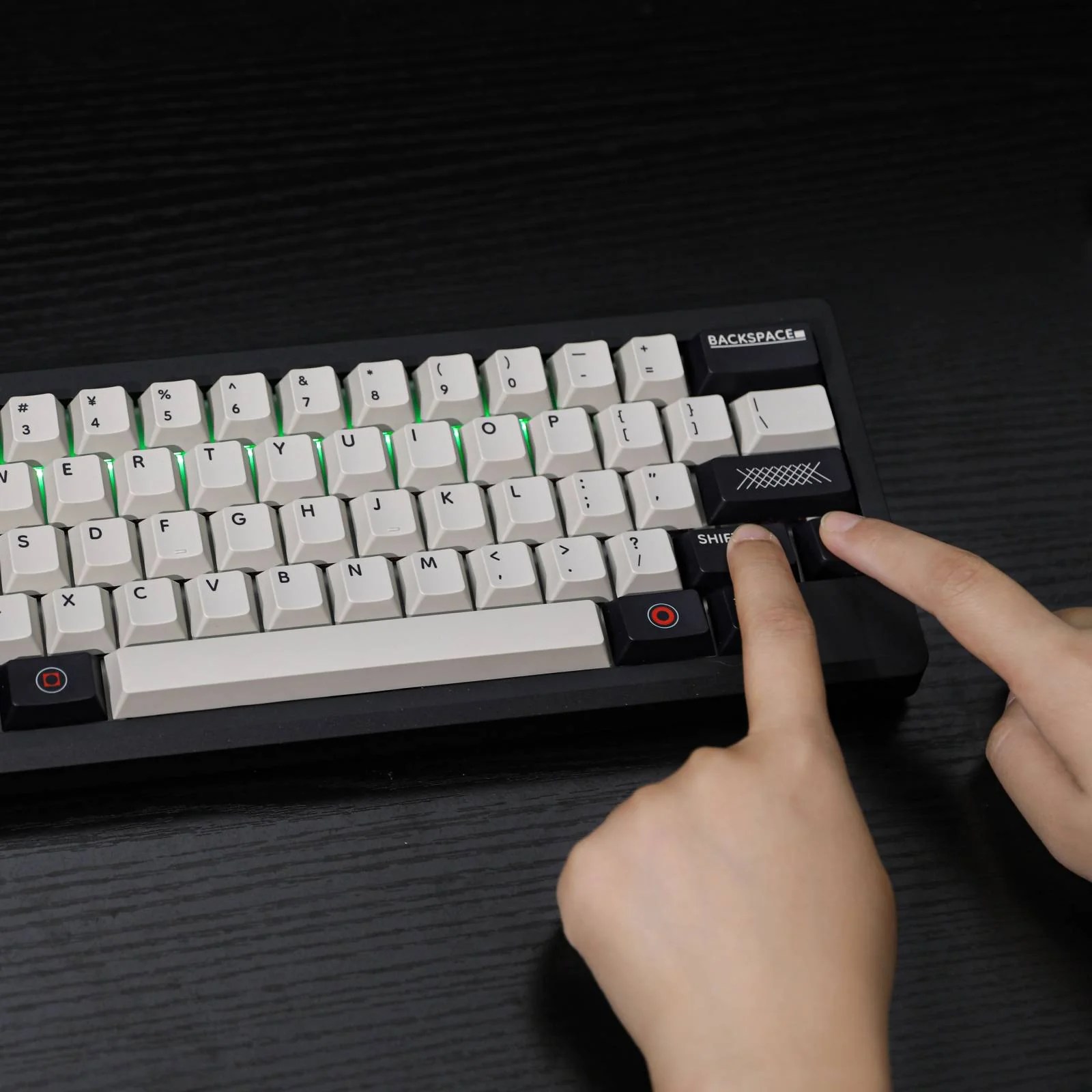
The Epomaker RT65 is a lightweight 65% keyboard with a retro yet modern design to elevate any desk space. It features south-facing customizable LED lights that can be customized through third-party software to fit any aesthetic. The RGB can be turned off at any time.

The RT65 can be used through a wired connection with the included stylish cable but also supports Bluetooth and wireless connections. The RT 65 can switch between three devices with its speedy Bluetooth 5.0 connection and the included 2.4 dongle.

The RT65 has a couple of unique gimmicks that help set it apart from its competition. The mini display is fully customizable and shows users important information like date, time, and battery life. The attached joystick can be used for the device’s media controls and mouse.

Most importantly, this compact keyboard has a respectable 3000 mAh battery.

Sound Test

https://churapereviews.com/wp-content/uploads/2024/10/rt65sound.mp3

Review

I was skeptical because this is by far the smallest keyboard I have ever used, and I am not a small man. It didn’t take me long to get used to the smaller layout, and the soft keys make it a more comfortable typing experience than my old, more expensive ergonomic setup.

Setting up the RT65 is extremely user-friendly. Connections are either plug-and-play or a few seconds of pairing. The included guide is easy to read and very valuable, especially for learning all the preprogrammed shortcuts. There is official software available for the keyboard, but it is only needed for customizing the keyboard when the preprogrammed options aren’t good enough.

The keyboard comes with a few preprogrammed RGB profiles that can be toggled off. Users can easily create their own RGB profiles, change the keyboard layout, create macros, and change the image on the mini display through the official software. The software is easy to use, and I like the amount of customization options available. It took a bit of tinkering, but I finally created a profile I am happy with, although I will probably need to find some new key caps to make it fit my desired aesthetic.

As for the battery, I was able to get about eight hours of use after a full charge with the lights and mini display going. I am sure I could get a longer session if everything turned off, but the keyboard looks so good with everything on. I do like that I can take off the mini display for when I travel, want to save battery or want something a little more subtle on my desk.

I hardly used the joystick. The joystick feels nice to the touch, but I forget it is there. It is an interesting gimmick that gives the keyboard its unique aesthetic, but it isn’t the reason to get the keyboard. The same can be said about the mini display, but I like how both look on the keyboard.

The Epomaker RT 65 has become my daily driver because of its unique aesthetic, solid battery life, and comfortable design. I wouldn’t call it the most ergonomic experience, but it feels a lot better than what I was using before. If you’re looking to upgrade your setup, or simply looking for a quality mechanical keyboard that won’t break the bank, get the RT 65. It is an excellent keyboard that lives up to its marketing.

You can pick up the Epomaker RT 65 off the official website.

The Epomaker P75 is a Fantastic Mechanical Keyboard!

Epomaker sent me their most popular keyboard, the P75 with the Wisteria Linear switches, for free to review for my blog. While I am very grateful for the opportunity, I won’t let it sway my opinions. This will be my honest review. You can find the P75 and Epomaker’s other stylish keyboards on their official website.

What’s in the Box?

The P75 comes beautifully packed. Inside you’ll find:

  • The Epomaker P75 Keyboard
  • Braided USB-A to USB-C chord
  • The space bar, arrow keys, and escape button in white (for those who want that all-white aesthetic
  • Wireless dongle
  • 3 replacement switches
  • Key puller tool
  • Allen wrench

Features

The P75 is a 75% keyboard with wired, wireless, and Bluetooth support. It allows connectivity to several devices from laptops, phones, and even popular gaming consoles. Its south-facing 8-color RGB makes it easy to see the 16 preprogrammed profiles. Coupled with the easily swappable keys and keycaps, the P75 is a perfect fit for any setup. The P75’s 4000mAh gives users a solid wireless session, and the volume dial is a nice touch.

Most importantly, the keyboard comes in three switches for a completely customizable experience. The available switches:

  • Zebra Switch: Linear, 5-pin, Travel: 1.8/3.8mm, Force: 40/45gf   
  • Wisteria Linear Switch: Linear, 5-pin, Travel: 2.0/3.6mm, Force: 45/62gf    
  • Wisteria Tactile Switch: Tactile, 5-pin, Travel: 2.0/3.1mm, Force: 46/62gf

Sound Test

https://churapereviews.com/wp-content/uploads/2024/09/epomakersoundcheck.mp3

Review

The Epomaker P75 is a fantastic mechanical keyboard. I love the sleek design of its aluminum finish and the simple yet beautiful color scheme. The Wisteria Tactile Switches emit a beautiful creamy click that I find incredibly satisfying. Be mindful. It is a little loud, and the sound might annoy the people around you.

While the keyboard is easy to setup, I recommend keeping the manual. The keyboard comes preprogrammed with various useful commands for controlling RBG, media, check the battery, and open certain programs. The commands are easy to memorize, especially if you only care about the ones you use most often.

I used to only ever use wired connections, but I am converted. I like the lack of clutter and how easy it is to switch between devices. I have the devices connected to my gaming pc and work laptop, and switching between them is as easy as flipping the switch. The switch is easy to reach and responsive without it being too easily flipped.

I used the keyboard for both work and gaming and was impressed by the battery life. With the RGB turned up, I get a solid eight hours of steady heavy use. I can get a longer session with the RGB turned off, but it looks so pretty that, I didn’t want to test it.

The keys feel very good to the touch, and make typing a delight. Gaming with the P75 is a solid experience. The keys are responsive enough for any style of gaming, and they are soft enough that they don’t require hard presses. I am glad this keyboard doesn’t destroy my hands after an intense gaming session.

I get pretty bad repetitive stress disorder, and the wrong keyboard destroys my hands. I typically use a special keyboard to avoid a painful flair-up, so there was some anxiety when I switched to the P75. While it is by no means a true replacement for my original ergonomic setup, I am having trouble finding a reason to switch back. There is still some faint pain that comes after prolonged use, but it isn’t anything unbearable. I’ve had keyboards that leave my hands useless, but P75 is comfortable. That doesn’t mean I won’t try to get one of their split options for comparison, but I think this will remain my daily driver until my hands say otherwise.

The Epomaker P75 is a fantastic mechanical keyboard for anyone looking. Its size, color scheme, and wireless capabilities make it the perfect candidate for any minimalistic setup. If you’re looking for a quality yet budget mechanical keyboard, I can’t recommend this enough.

You can pick up your Epomaker P75 for $99.99 on the official website.

Razer Hunstman Pro V3 Series Keyboards coming this October

I sat through some of this year’s Razercon, and I can’t help but feel disappointed by the collection of announcements. We got some overpriced chairs, an ugly D&G collaboration, and of course, RGB on everything. I know there is a lot of hate for Razer products, but I love my Orbweaver. The problem is, that Razer is no longer supporting it. I can feel my Orbweaver dying with each keystroke, but I’m using it till it dies. I was hoping that this stream would announce a suitable replacement, but sadly, they haven’t quite earned my money just yet.

If you missed the stream, you didn’t miss much. If you care about RGB lights, looking for a Razer-branded gaming chair, or want some overpriced Dolce & Gabbana gaming gear, go watch the VOD. The only announcement worth some attention has to be the announcement of the Huntsman V3 Pro line Keyboards.

The Huntsman V3 Pro line introduces the 2nd Generation Razer Analog Optical Switches which promise to be optimized for the competitive esports scene. With a rapid trigger mode, adjustable actuation, and onboard memory, this could be the tool to elevate your game to the next level. The Huntsman V3 Pro line is also designed to be more durable, for your more intense gaming sessions. With a 100-million keystroke lifespan, textured doubleshot PBT keycaps, and a brushed aluminum top plate, it’s not only going to look great, but they might have to bury it with you as well. Historically, Razer products just look good for a few years before failing or breaking, so I’d take the marketing with a grain of salt until further testing is done. The keyboards do come with a 2-year warranty if purchased directly from RazorStore, so keep that in mind when making your decision. And yes, it has RGB and synapse support.

The Keyboard comes in three flavors: Huntsman V3 Pro ($249.99), Huntsman V3 Pro TKL ($219.99), and Huntsman V3 Pro Mini ($179.99). The only difference between the versions is the size. The Hunstman Pro V3 has a keypad included, the TKL doesn’t have the keypad, and the mini doesn’t have the keypad, function bar, or arrow keys. Choice therefore comes down to the gamer’s needs, space, and budget. I am not in the market for a full-sized keyboard at the moment, so I’ll be waiting for the keypad announcement. If you are looking for your new gaming keyboard, preorders start today and the product ships October 31st.

If you enjoy these updates, don’t forget to like, comment, follow, and share this with your friends!

Huntsman V3 Pro ($249.99)

Huntsman V3 Pro TKL ($219.99)

Huntsman V3 Pro Mini ($179.99)

Tech Review: Redragon K585 DITI Keypad

If you like what I do and want to show your support, please consider buying me a coffee

I want to start off by mentioning that this isn’t a sponsored review. I bought this with my own money and these will be my honest review. All links in this review are my affiliate links, I get a little money if you choose to buy anything I link to.

The Redragon K585 DITI is a mechanical gaming keypad. The keypad has 42 keys and 7 onboard macro keys that are easy to program through their software. You get three options for key switches: red, brown, and blue. The red switches are their silent option, blue is their loudest, and brown is in between. The Redragon K585 DITI is available in both wired and wireless options. And just so you know that this is a gaming keypad, it has RGB.

Out of the box, you get the keypad, a plastic wrist rest, a keycap puller, a switch puller, a braided USB-c cable, a wireless dongle, extra switches for replacement, and a sticker. I choose the wireless option with the blue caps, so my set came with five blue switches.

Images taken from Amazon product page

At first glance, this keypad looks cheap. When you use it, it feels and sounds cheap as well. It’s not unusable nor breaks easily, but it is something to keep in mind. The blue switches are very loud; I recommend you buy one of the quieter options even if you like the sound. The blue switches do not produce the satisfying mechanical sound I am used to, but rather a cheap clanging that will annoy your housemates. You can probably lube the switches to reduce the sound and eliminate some of the clangings, but that is too much effort for a cheap keypad. You are better off spending a bit more for something better.

I used the keypad for about a month for all my gaming. The performance of the keypad was great at first. There was no noticeable latency, but the clanging got annoying. If you are using voice chat, everyone is going to hear your keypresses. Unfortunately, the wireless feature stopped working after a day. I tried updating the firmware, switching ports, and charging the battery, but the fixes were only temporary. I ended up returning the keypad because I couldn’t use it wirelessly.

Programing this keypad is easy. You plug in the keypad and use the software to customize the keys, macros, and lighting profiles. You can change the lighting profiles on the keyboard without having to go into the software which is nice. The macros were nice and I would use them to bind keys that I needed for gaming that this keypad didn’t have. Unfortunately, my bindings kept clearing so I stopped using them pretty early on as well.

The RGB is okay and offers a few options, but you are limited to the preset profiles. If you want better customization, I suggest you get a different keyboard. One pretty cool feature this keyboard has is that the backlight turns off when it is not in use. Unfortunately, I can’t speak about the battery life since I was forced to mostly use it wired. I recommend buying the wired version instead.

Maintenance for the keypad is very easy. The keycaps and switches are easy to remove for cleaning and replacement. I dropped the keypad accidentally from a low height, and one of the keycaps fell off. I was able to put it back without an incident, but I fear a higher drop might prove disastrous.

If you are looking to make your setup more ergonomic, look elsewhere. Although I found my hand position on this keypad comfortable, I could only game on this for an hour before my hand would cramp out and remain useless. The wrist rest offers no additional support and seems more like a gimmick than a feature. You are better off purchasing a third-party wrist wrest. If you are looking for an ergonomic mechanical keyboard, you are better off with the Kinesis Freestyle. You can see my full review on that here.

So is the Redragon K585 DITI worth your money? No, it is not. It feels, looks, and sounds cheap. The only reason I can see someone buying this keypad is if they need the portability. Otherwise, I suggest you spend a little more and buy a full-sized or split keyboard. If you are getting this keypad, get the wired version with quieter switches. You can buy both wireless and wired on Amazon with my affiliate links. The Redragon K585 DITI isn’t a terrible product, but you have better options.

Now for a shameless plug, check out Canva. If you need a quick and easy photo or video editor that works in your browser, try Canva. It is free, easy to use, and you get access to a wide selection of templates for those who are like me and aren’t that creative. Check out my affiliate link today! You can also try Amazon Prime with my Affiliate link!

Tech Review: Kinesis Freestyle2 Ergonomic Keyboard

Last post I wrote about the Kinesis Freestyle Edge RGB Keyboard, an ergonomic gaming keyboard that is nice but expensive. Know that if you are purchasing the Freestyle Edge, you are paying for the luxury of RGB backlighting. You can see my full review of the Freestyle Edge here. For a more affordable option, consider the Kinesis Freestyle2.

Before I begin, I would like to mention that I am not a doctor, and this review is based on my personal experience. For medical advice, always consult a doctor. This is not a paid review, but I will be using affiliate links to the products. If you choose to purchase anything I recommend, I get a small commission if you buy using my links. It isn’t much, but every little bit helps.

The Kinesis Freestyle2 is a wired split keyboard designed for ergonomics. The keyboard comes in a nine-inch split and a 20-inch split variation. I have the nine-inch split version, and I don’t feel like I need any more. Plan for your setup. I have wide shoulders, and the split design has allowed for a more comfortable position.

All images are from the amazon Product page.

My only complaint about the Kinesis split keyboards is that they do not come with the optional tenting kit. Kinesis offers an optional tenting kit for all their split keyboards for a more ergonomic experience. I used the Freestyle2 without the kit, but I am so used to the tilt that I had to buy the kit for this one as well. Most people should be fine using the keyboard without the kit, but personally, the tenting kit makes long typing sessions a lot more comfortable. The Freestyle2 has two options for tenting, a 15-degree variant ($40 on Amazon) and a 90-degree variant ($200 on Amazon). I use the 15-degree variant and think it is perfectly fine, but the 90-degree is a solid option if you prefer a vertical keyboard. I don’t have any experience with the 90-degree version and can’t speak on how sturdy it is.

The main differences between the Freestyle Edge and the Freestyle 2 are the switches and backlight. The Freestyle2 is a membrane keyboard with no backlight and it honestly doesn’t need either. The key presses are soft and responsive, but they aren’t customizable. I have been using this keyboard regularly for two years and haven’t seen any visible signs of wear and tear. Unfortunately, Kinesis doesn’t offer keycap replacements keycaps or mac conversions for this keyboard. The Freestyle2 also comes with a few preprogrammed macro keys for productivity. I haven’t found too much use for these with my workflow.

I used to use a cheap flat keyboard for work that left my hands useless by the end of my shift. There were days when I couldn’t finish my work because the pain would be unbearable. Since making the switch to the Freestyle2, I haven’t had any issues with pain in my hands and wrists. I recommend taking regular breaks and looking into stretches for added comfort. My only other complaint about this keyboard is that there is no number keypad. I don’t really need one for my workflow, the number line works well enough, but the split design makes using numbers a slower experience. It isn’t unmanageable, but people who work with numbers should look into getting a separate keypad. Kinesis offers a Numeric Keypad, currently $35.95 on Amazon, but you can choose your presence.

If you are looking to make your setup a bit more ergonomic, consider the Kinesis Freestyle2 Keyboard, currently $89 on Amazon. This is the perfect option if you don’t care about a backlight, customizations, or key switches. I will be continuing this series with some gaming peripherals that have also helped save my hands a bit more strain. Stay tuned for more.

Tech Review: Kenisis Freestyle Edge RGB Keyboard

I’ve done a lot of research to find an ergonomic setup that fits my lifestyle. I do a lot of typing and gaming on my computer, and I needed a keyboard that could transition from both seamlessly. I was using a cheap mechanical keyboard before that left my hands useless. I love mechanical keyboards and wanted to find an ergonomic version that also had a backlight. The Kinesis Freestyle Edge RGB keyboard was my answer, but it might not be yours.

Before I continue with this review, I would like to take a moment to mention that I am not a doctor. This review is based on my experience. Please consult your doctor for any medical concerns. I will also be using affiliate links for the product. If you decide to purchase the product, I get a small commission, but these will be my honest thoughts on the keyboard.

The Kinesis Freestyle Edge is a split keyboard. The split design allows for more natural hand placement, ideally relieving unnecessary strain from your hands and wrists. I have wide shoulders, and the split design allows for a more ideal placement that better fits my frame.

As far as mechanical keyboards go, the Edge is on the quieter side. I did opt for the quieter brown switches because I wanted softer key presses, but you can get one with the louder and more tactile blue switches if that fits your style better. The brown switches aren’t completely quiet, and you do get some sound, but it isn’t as loud as some of the cheaper mechanical keyboards out there.

This keyboard comes with nine programable macro keys that can be easily adjusted on the keyboard or through the official software. You can save two different profiles, which is nice if you share a computer with someone else or if you need nine extra macro keys. I don’t have much use for the macros except for media keys at the moment, but setting them up was very simple. The RGB profile can also be adjusted easily through the software. Any changes you make to this keyboard whether it be macros, profiles, or RGB is saved to the keyboard directly. If you switch to a different computer, all your profiles and macros transfer with the keyboard. It’s nice to not have to have another account to access your preferences or lose them if your computer wipes.

I love this keyboard and have been daily driving it for nearly three years without any issues. My only complaint with this keyboard is that it doesn’t come with the lift kit. Kineses offers a separate kit which isn’t necessary, but I do recommend it getting one. I used the keyboard without the kit for about a week before giving in and buying one. There was nothing wrong with the flat setup of the keyboard, but I use my computer too much and needed the additional ergonomics. The lift kit offers a more natural position for your hands, and I honestly can’t go back to using anything else.

The keycaps are nice. They are very soft to the touch, but you can customize your keyboard with third-party caps if they fit MX switches. Be mindful of the measurements. You might have trouble finding spacebars that fit this board. If you have a mac, Kinesis offers a separate kit to change your command keys. Unfortunately, the kit is an additional $28, and you have to install it yourself. The installation is very easy, even if you have no prior experience.

The Freestyle Edge is an adequate keyboard for gaming. The keys are responsive and easy to press, but the function keys are a bit out of reach for me. I often had to stretch to hit these keys, and my performance suffered. Games where I needed to press these keys more often would also tire my hands out more quickly. This is possibly a personal problem for my short stubby fingers, but it is something to keep in mind. Games that don’t require the function keys are fine. I could play for a lot longer before feeling any discomfort. I still recommend taking regular breaks and doing stretches keyboard this won’t fix the issues completely. For people who play and work a healthy amount, the Freestyle Edge is a fantastic solution.

So is it worth it? Honestly, this keyboard is a bit pricey for what you get. I bought it because I liked the style and the RGB and didn’t mind the tax for both options. But if you are on a budget and only need the ergonomics, there are better options. The Kenisis Freestyle Edge has made a huge difference in my setup, and I do not regret my purchase. I understand that this keyboard isn’t for everyone, but for those interested, you can buy it on Amazon.